What Is AI in Graphic Design, and How Does It Work?
Published: 13 Sep 2026
If you work in graphic design, you’ve probably noticed how often AI comes up these days. Some designers see it as a useful way to speed up their work, while others are concerned about what it could mean for creativity and original ideas. The truth is somewhere in between, which makes understanding the role of AI in graphic design worth exploring.
This guide will help you understand where AI can fit into your design work, what it does well, and where it still falls short. You’ll also learn how to get the most from these tools while keeping your own creative thinking at the heart of the work.
Let us cover it in detail.
Role of AI in Graphic Design: Major Areas
The role of AI in graphic design is growing as designers find new ways to bring it into their everyday creative work.
Here are the main roles of artificial intelligence in graphic design:
- Generating Design Ideas
- Creating Visuals
- Editing Images
- Removing Backgrounds
- Choosing Color Palettes
- Pairing Fonts
- Creating Layouts
- Resizing Designs
- Personalizing Content
- Handling Repetitive Tasks
Now, let’s look at each role one by one to see how AI can support different parts of the graphic design process.
1. Generating Design Ideas
Starting with a strong idea is often the hardest part of a design project. AI can help designers explore concepts, themes, and visual directions instead of staring at a blank page.
It can be useful when you feel stuck or need several options to explore. You can then pick the direction that fits the project and shape it with your own creative thinking.
- Purpose: Helps designers find new concepts and creative directions.
- How It Helps: Gives you several starting points when you do not know where to begin.
- Common Uses: Works well for mood boards, campaign ideas, themes, and early design planning.
- Main Benefit: Makes the brainstorming stage faster and easier.
- Example: A designer working on a coffee brand can explore ideas based on warm colors and a handmade feel.
- Best Practice: Use the suggestions as a starting point, then add your own ideas and style.
- Limitation: Some suggestions may feel too general or may not suit the brand.
From the designer’s desk: Exploring a few ideas before settling on one can make the rest of the design process much smoother.
Fresh Angle: Start with your project’s goal and audience, then use the suggestions to explore ideas that actually fit the brief.
2. Creating Visuals
Creating visuals can take a lot of time, especially when a project needs several design options. AI can help designers turn simple ideas or written descriptions into images, illustrations, and other visual elements.
This gives designers more room to explore different looks before choosing a final direction. It can also help when a project needs a quick visual starting point or a custom image that takes time to create from scratch.
- Purpose: Helps turn ideas and descriptions into visual content.
- How It Helps: Gives designers quick options to explore before building the final design.
- Common Uses: Useful for illustrations, concept images, social media graphics, and visual mockups.
- Main Benefit: Speeds up the early visual creation process.
- Example: A designer creating a travel post can create a visual concept around a beach destination and then refine it for the final layout.
- Best Practice: Give clear details about the subject, style, colors, and purpose of the visual.
- Limitation: Generated visuals may need manual changes to match the exact design requirements.
A designer’s note: I find it easier to work from a rough visual direction than from a completely blank canvas, especially during the early stages of a project.
Final Touch: Always review the visual carefully and adjust the details that do not match your design goal.
3. Editing Images
Image editing covers tasks like fixing small flaws, changing backgrounds, adjusting colors, and improving the overall look of a picture. AI can make these jobs quicker, which helps designers spend more time on the creative side of a project.
It can handle simple edits without making designers repeat the same steps again and again. This works well when a project has many images or needs quick changes before a design goes live. Designers can then make the final adjustments themselves to match the style of the project.
- Purpose: Helps improve and adjust images for different design needs.
- How It Helps: Makes common editing tasks quicker and easier to manage.
- Common Uses: Useful for background changes, object removal, color adjustments, and image cleanup.
- Main Benefit: Saves time on small edits that can slow down a design project.
- Example: A designer can remove an unwanted object from a product photo before placing it in an advertisement.
- Best Practice: Check every edited image closely, especially around edges, faces, text, and fine details.
- Limitation: Complex edits can sometimes produce details that look unnatural or need manual correction.
- Things to Remember: Keep the original image safe so you can compare changes or return to the untouched version.
A practical note: Small image fixes often make a bigger difference than people expect. Getting rid of one distracting detail or correcting a poor crop can make the whole design feel cleaner.
Clean-Up Check: Before exporting, zoom in and inspect the edited areas so small mistakes do not slip into the final design.
4. Removing Backgrounds
Removing a background means separating the main subject from the rest of an image. This simple task matters because a clean subject makes it easier to place the image into a new design or layout.
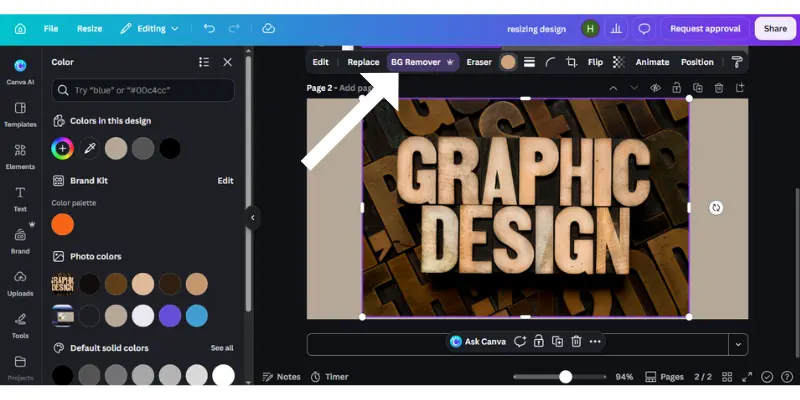
Designers often need this step for product photos, portraits, ads, and social media graphics. A quick background removal gives them a clean starting point and saves time on work that would otherwise take careful manual selection.
- Purpose: Separates the main subject from the unwanted background.
- How It Helps: Gives designers a clean image that they can place into different layouts.
- Common Uses: Works well for product photos, portraits, banners, ads, and social media posts.
- Main Benefit: Cuts down the time needed for detailed selections.
- Example: A designer can remove the background from a shoe photo before placing it on a promotional banner.
- Best Practice: Check hair, thin edges, shadows, and other fine details after removing the background.
- Limitation: Busy backgrounds or subjects with fine details can make clean separation harder.
- Things to Remember: Keep a copy of the original image before making any changes.
A practical note: Clean edges matter more than speed here. Even a small mistake around hair, fingers, or product edges can make the final design look unfinished.
Edge Check: Take a close look around the subject before placing it into the final layout.
5. Choosing Color Palettes
Choosing the right colors can shape how people see and feel about a design. AI can help designers explore color combinations that suit a brand, image, or creative project.
It gives designers different color options to consider instead of starting from scratch. This can make it easier to find a balanced palette for websites, social posts, ads, packaging, and other visual work.
- Purpose: Helps designers find color combinations that work well together.
- How It Helps: Offers different palette ideas based on a design’s style or purpose.
- Common Uses: Useful for branding, websites, social media graphics, posters, and marketing materials.
- Main Benefit: Makes color selection quicker and gives designers more options to explore.
- Example: A designer creating a skincare brand can explore soft, clean colors that suit the brand’s look.
- Best Practice: Check the chosen colors for contrast, readability, and consistency across the design.
- Limitation: A suggested palette may look good on its own but fail to match the brand or project.
A practical note: Color choices often become easier when you first decide what the design should communicate. Once that feeling is clear, it becomes much simpler to narrow down the right palette.
Color Check: Test your final colors together in the actual design instead of judging each shade on its own.
6. Pairing Fonts
Choosing fonts that look good together can make a design feel clear and well put together. AI can suggest font combinations that match the style, mood, and purpose of a project.
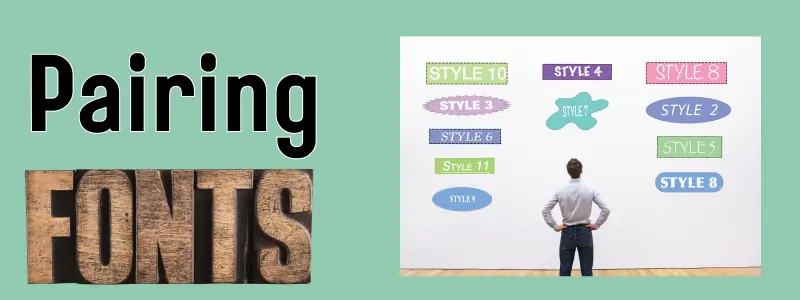
This can help when you are unsure which typefaces work well side by side. It also gives designers a few combinations to test, while they can make the final choice based on readability and the overall look of the design.
- Purpose: Helps create font combinations that feel balanced and consistent.
- How It Helps: Suggests typefaces for headings, body text, labels, and other design elements.
- Common Uses: Useful for websites, posters, brand designs, presentations, and social media graphics.
- Main Benefit: Makes it easier to find suitable font combinations without testing every option yourself.
- Example: A designer can pair a bold font for a poster headline with a simple font for the supporting text.
- Best Practice: Keep readability in mind and make sure the fonts have a clear visual difference.
- Limitation: A combination that looks good in one design may not suit another brand or layout.
A practical note: Good font pairing does not need to feel complicated. When one font leads and the other supports it, the design usually feels much easier to read.
Type Test: View the fonts in the actual layout before making your final choice, as spacing and size can change how the pairing feels.
7. Creating Layouts
A good layout gives every part of a design its right place. AI can help designers arrange text, images, colors, and other elements so the design feels clear and easy to follow.
This can save time when a project needs different layout options. Designers can explore several arrangements, then adjust the spacing, size, and position to suit the message and audience. It also helps when you need a starting point for a design but are not sure how to organize the elements.
- Purpose: Helps arrange design elements in a clear and balanced way.
- How It Helps: Provides layout ideas that designers can adjust to fit their projects.
- Common Uses: Useful for posters, web pages, brochures, presentations, and social media designs.
- Main Benefit: Gives designers a quicker starting point for organizing visual elements.
- Example: A designer can create different arrangements for a promotional poster before choosing the strongest one.
- Best Practice: Keep the main message easy to notice and give each element enough space.
- Limitation: A suggested layout may look balanced but still fail to match the project’s message or style.
- Things to Remember: Always check how the layout looks on the final screen or print size.
A practical note: A design can contain all the right elements and still feel messy if their placement does not guide the reader naturally. Good spacing and a clear visual order often make the biggest difference.
Layout Check: Step back from the design and see whether your eyes naturally move from the most important element to the next.
8. Resizing Designs
A single design often needs to fit different screen sizes and platforms. AI can help designers resize a design while keeping important elements, text, and images in place. This makes it easier to prepare one design for several formats without rebuilding everything from the beginning. Designers can then check each version and make small adjustments where the layout needs more attention. It works especially well for projects that require multiple sizes in a short time.
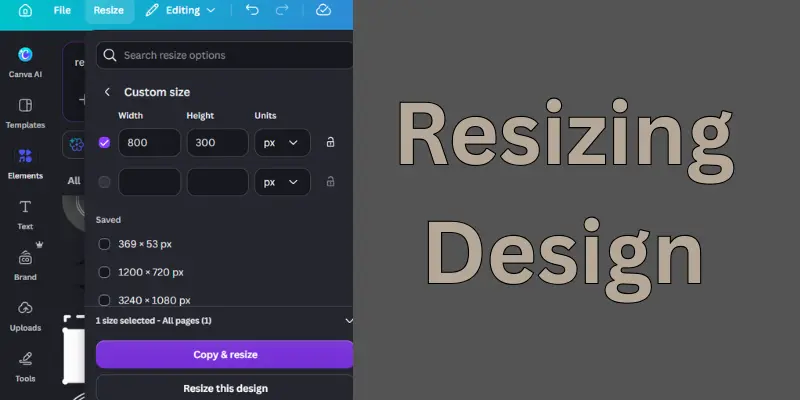
- Purpose: Adapts a design to different dimensions and formats.
- How It Helps: Adjusts design elements to fit new sizes with less manual work.
- Common Uses: Useful for social media posts, ads, banners, presentations, and website graphics.
- Main Benefit: Saves time when one design needs several versions.
- Example: A designer can turn a square social media graphic into a wide banner without starting the design again.
- Best Practice: Check text, images, spacing, and alignment after every size change.
- Limitation: Some layouts need manual changes because simple resizing cannot always preserve the original visual balance.
- Things to Remember: Design for the new format rather than assuming every element will fit perfectly.
A practical note: Resizing is more than changing the width and height. A design that looks great in one format can feel crowded or empty in another, so I always recommend checking the full layout after resizing.
Final Size Check: Open each version at its actual display size and make sure the message remains clear.
9. Personalizing Content
Personalized design means creating visuals that speak to a specific person, group, or audience. AI can help designers adjust images, text, colors, and other elements to make content feel more relevant to different viewers.
This approach works well when one campaign needs several versions for different audiences. Instead of creating every version from scratch, designers can make targeted changes while keeping the main look of the campaign consistent. The designer still decides what changes make sense and keeps the final designs on brand.
- Purpose: Helps tailor visual content to different audiences and their needs.
- How It Helps: Makes it easier to create variations without rebuilding the entire design.
- Common Uses: Useful for AI-powered marketing campaigns, social media posts, email graphics, and targeted advertisements.
- Main Benefit: Makes visual content feel more relevant to the people who see it.
- Example: A clothing brand can create different ad versions with visuals that suit different customer groups.
- Best Practice: Keep the brand’s main colors, style, and message consistent across every version.
- Limitation: Personalization may feel forced when the audience data does not clearly support the changes.
- Things to Remember: Avoid adding personal details that feel unnecessary or intrusive.
A practical note: Personalization works best when the changes have a clear reason behind them. A small adjustment in an image or message can make a design feel more relevant without changing its whole identity.
Audience Check: Before creating different versions, make sure each change actually adds value for the intended audience.
10. Handling Repetitive Tasks
Graphic designers often spend time on small tasks that follow the same steps again and again. AI can take care of some of this routine work, giving designers more time to focus on the parts of a project that need their creative input.
These tasks may include resizing files, applying the same edits, organizing images, or preparing different design versions. When AI handles the routine steps, designers can move through large projects more easily while still checking the final work themselves.
- Purpose: Reduces the time spent on routine design work.
- How It Helps: Handles repeated steps so designers can focus on more creative tasks.
- Common Uses: Useful for resizing files, editing multiple images, creating design variations, and organizing assets.
- Main Benefit: Frees up time for work that needs more thought and creativity.
- Example: A designer can prepare several social media sizes from one approved design instead of adjusting each file by hand.
- Best Practice: Set clear rules for repeated tasks and review the finished files before delivery.
- Limitation: Routine automation may miss small design details that need a human eye.
- Things to Remember: Keep important creative decisions under your own control.
A practical note: Repetitive work may seem small, but it can take up a good part of a design project. Letting routine steps take care of themselves can make the workflow feel much lighter.
Workflow Tip: Automate the boring steps, but always give the final designs a personal review.
How AI Is Used Across Different Types of Graphic Design
AI can support many forms of graphic design, but designers must adjust its use based on the design type, audience, purpose, and level of accuracy needed. Its role can range from creating ideas to handling repeated design tasks, while the designer makes the final creative choices.
- Layout Design: AI for layout design can arrange text, images, and visual elements to create a suitable structure for different design projects.
- Poster Design: AI for poster design can suggest visual concepts, layouts, images, and styles that fit a specific event, campaign, or message.
- Social Media Design: AI for social media design can create visual ideas and design variations that match different platforms and audience needs.
- Web Design: AI for web design can suggest page layouts, image placements, color combinations, and other visual elements for websites.
- Presentation Design: AI for presentation design can organize slide elements and suggest visuals that match the topic and message.
- Visual Content: AI for visual content can turn ideas and information into graphics, illustrations, charts, and other design elements.
- Image Generation: AI for image generation can create images from text prompts that designers can use as starting points for creative projects.
- Background Removal: AI for background removal can separate subjects from image backgrounds for use in posters, product graphics, and social media designs.
- Logo Design: AI for creating logos can generate logo ideas based on a brand’s name, style, colors, and visual needs.
- Design Automation: AI design automation can handle repeated tasks such as resizing graphics, creating design variations, and applying set design rules across multiple files.
Benefits and Limitations of AI in Graphic Design
Every technology has its strengths and weaknesses, and AI is no different. It can make several parts of graphic design easier and faster, but it still needs a designer’s ideas, judgment, and final review.
| Benefits: |
|---|
|
Here are the main advantages of using AI in graphic design:
|
| Limitations: |
|---|
|
AI can speed up many design tasks, but its suggestions do not always fit the project perfectly. Human input remains important for checking details, protecting originality, and making sure the final design communicates the right message. However, designers should also understand the following limitations:
|
AI vs Human Graphic Design
As someone who has worked with content and creative projects, I’ve seen how much graphic design depends on human effort. Designers traditionally rely on research, creative thinking, experience, and careful editing to turn an idea into something useful and appealing. AI has changed the process by making tasks like brainstorming, creating first drafts, editing images, and adapting designs much faster.
The difference is not simply about which one is better. AI can handle certain tasks quickly, while human designers bring context, personal judgment, and a deeper understanding of what a design needs to communicate.
| Area | AI | Human Graphic Designers |
| Creativity | AI can suggest ideas based on existing patterns, but designers shape those ideas into something meaningful and original. | Designers bring personal ideas, creative judgment, and a clear sense of visual direction. |
| Speed | AI can produce ideas, variations, and basic edits quickly. | Designers may take more time, especially when a project needs careful planning and refinement. |
| Research | AI can quickly gather and organize information, but it may miss context or misunderstand important details. | Designers can research the brand, audience, market, and project goals with greater context. |
| Accuracy | AI-generated content and visual details can contain mistakes, so you need to check the output. | Human research also needs verification because designers can misunderstand or work with outdated information. |
| Emotional Connection | AI can follow emotional styles and patterns, but it does not experience feelings or real-life situations. | Designers can draw from human experiences and better understand the emotions a design needs to communicate. |
| Original Insight | AI finds patterns from existing information and uses them to suggest possible directions. | Designers use knowledge, experience, observation, and creative judgment to develop ideas of their own. |
| Editing | AI can handle many quick changes, but it may not know which detail matters most to the design. | Designers make the final calls about balance, tone, readability, and visual impact. |
| Best Use Cases | AI works well for brainstorming, quick variations, routine edits, and early visual exploration. | Designers work best when a project needs strategy, originality, strong visual judgment, and a personal touch. |
Best Practices for Using AI Effectively
If you decide to use AI in graphic design, following a few good practices will help you get better results.
- Write Clear Instructions: Tell the tool what you want, who the design is for, and what style or tone it should follow.
- Provide Useful Context: Share the key details, visual references, brand guidelines, and limits that matter to the project.
- Check Every Fact: Verify names, dates, figures, quotes, and claims before adding them to a design.
- Add Human Experience: Bring your own ideas, design knowledge, and understanding of the audience into the final work.
- Edit the Final Design: Review the layout, colors, text, spacing, and overall look before you publish or deliver it.
- Protect Private Information: Avoid sharing sensitive client details, private files, or confidential business information without a clear need.
- Review for Originality: Check the design for generic elements or similarities that could weaken its unique identity.
- Follow Search Guidelines: Create useful visual content for real readers instead of producing large amounts of low-value material.
- Use Reliable Sources: Check important information against trustworthy and up-to-date references.
- Treat AI as an Assistant: Let it support your workflow while you keep control of the creative and final decisions.
Popular AI Graphic Design Tools
Many AI-powered graphic design tools are available today, but each one focuses on different parts of the design process. Features, prices, and availability can change, so check the official websites before choosing a tool for your projects.
- Adobe Firefly: Best for generating and editing images, creating visual effects, and exploring creative ideas within Adobe’s ecosystem.
- Canva: Best for creating social media graphics, presentations, marketing designs, and other visual content with ready-to-use design features.
- Midjourney: Best for exploring creative image concepts and developing distinctive visual styles from text descriptions.
- Adobe Photoshop: Best for detailed image editing, retouching, compositing, and refining creative work with AI-assisted features.
- Microsoft Designer: Best for creating graphics from simple ideas and adapting visual content for different needs.
- Figma: Best for interface design, collaborative projects, and building structured digital layouts.
- Leonardo. Ai: Best for creating custom visuals, illustrations, and concept images for different creative projects.
- Ideogram: Best for creating images that include text, making it useful for posters, graphics, and other text-based visuals.
No single tool fits every design project, so consider the type of work you do, the features you need, and how well each tool fits your existing workflow.
Conclusion
In this guide, we’ve covered the role of AI in graphic design, from generating ideas and creating visuals to editing images, choosing colors, pairing fonts, building layouts, resizing designs, personalizing content, and handling repetitive tasks. We also looked at its benefits, limitations, popular tools, the difference between AI and human design work, and some practical ways to use these tools effectively.
The main takeaway is simple: AI can save time and make many design tasks easier, but it does not replace the creative thinking behind good design. Human creativity, critical thinking, proper research, experience, originality, and careful editing still play an important part in producing work that truly fits a brand and its audience.
So, use AI where it adds value, but keep your own judgment at the center of the process. If you’ve used these tools in your design work, share your experience or opinion in the comments—we’d love to hear what worked for you.
FAQs
Here are the questions readers may still have about AI in graphic design. Let’s look at them one by one to clear up common doubts and practical concerns.
Yes, AI can create graphic designs from a simple description, reference, or design idea. It can produce a starting concept, but a designer usually needs to refine the layout, typography, colors, and other details. The final result depends on how well the designer guides and reviews the work.
Yes, AI can make graphic design easier for beginners by helping them explore ideas and complete basic tasks. It can provide a useful starting point when someone is still learning design principles. However, beginners should also learn core skills such as composition, color, typography, and visual hierarchy.
AI can follow brand guidelines when you provide clear information about the brand’s style, colors, fonts, and visual direction. Still, it may not fully understand the deeper meaning behind a brand or the reason certain design choices matter. A designer should review every result to keep the brand identity consistent.
Designers can make AI-created work more original by adding their own ideas, visual choices, and creative direction.
- Start with a clear concept rather than a generic request.
- Change layouts, colors, typography, and visual elements.
- Add brand-specific details.
- Review the final design for similarities to existing work.
This approach makes AI-generated graphic design more personal and purposeful.
Yes, AI can help create and adapt graphics for social media platforms. Designers can develop visual concepts, create variations, and adjust designs for different formats. They should still check dimensions, readability, branding, and platform requirements before publishing.
It depends on the tool’s privacy policy, terms, and how it handles uploaded information. Before uploading client work, designers should check the tool’s data practices and avoid sharing confidential material unnecessarily. A safer approach is to remove sensitive information whenever it is not needed for the task.
Yes, AI can help explore logo concepts, symbols, colors, and different visual directions. However, a professional logo needs careful attention to simplicity, scalability, brand identity, and originality. Designers should develop and refine the chosen concept instead of relying on a generated result as the finished logo.
Graphic designers should continue building core design skills while learning how to work with AI tools.
- Typography
- Color theory
- Composition
- Branding
- Image editing
- Visual communication
- Creative thinking
- Design research
These skills help designers make better decisions when working with AI.
AI-generated designs can sometimes share similar visual styles, especially when designers rely on common prompts or popular design trends. Adding a clear creative direction and making manual changes can help create a more distinctive result. Your own design choices still play an important role in the final appearance.
Businesses should choose AI based on the type of design work, privacy needs, quality expectations, and available resources. Simple and repetitive tasks may suit AI well, while projects that depend heavily on brand strategy or a unique creative direction may need stronger human involvement. The goal should be to find a practical use of AI in graphic design rather than adopting it simply because it is available.



- Be Respectful
- Stay Relevant
- Stay Positive
- True Feedback
- Encourage Discussion
- Avoid Spamming
- No Fake News
- Don't Copy-Paste
- No Personal Attacks
- Be Respectful
- Stay Relevant
- Stay Positive
- True Feedback
- Encourage Discussion
- Avoid Spamming
- No Fake News
- Don't Copy-Paste
- No Personal Attacks
